SteamVR Floor Too Hjigh: Why It Happens and How to Fix the Height Calibration Issue

Understanding the “SteamVR Floor Too Hjigh” Problem
“SteamVR Floor Too Hjigh” is one of the most common calibration issues reported by VR users across Valve Index, HTC Vive, Meta/Oculus headsets (via SteamVR), and Windows Mixed Reality devices. When this problem appears, the virtual floor in games looks unrealistically elevated—sometimes several feet above the user’s actual floor. This makes gameplay uncomfortable or impossible, as objects appear at the wrong height, interactions fail, and the user feels “floating” or incorrectly positioned.
This issue typically arises because SteamVR uses multiple tracking references (base stations, inside-out cameras, controllers, and HMD sensors). If one of these references misreads your environment or loses its baseline, SteamVR calculates your room height incorrectly and lifts the virtual ground above normal.
Search data shows that thousands of users encounter this issue across Steam forums, Reddit, and VR community groups. The good news is that the problem is almost always fixable with correct recalibration steps.
Why SteamVR Sets Your Floor Too High
There are several reasons why the SteamVR floor resets to an incorrect height, and understanding them helps users fix the issue quickly.
1. Room Setup Data Becomes Corrupted
SteamVR stores cached room-setup files. If these become outdated or corrupted due to:
-
Updating drivers
-
Moving sensors
-
Changing lighting
-
Altering your play space
SteamVR may calculate your height incorrectly.
2. Base Stations or Sensors Have Moved
For Lighthouse-tracked systems (Index, Vive), even a small shift in base station angle or position can change the entire height calibration.
3. Incorrect Guardian/Boundary Calibration
Inside-out tracked headsets (Oculus/Meta, WMR) rely on cameras to detect the floor. If the camera misreads the surface, the system raises the virtual floor.
4. SteamVR Updates or Firmware Changes
After major updates, room setup data may reset inconsistently, causing height issues.
5. Poor Lighting or Environmental Reflection
Bright lights, mirrors, or glossy floors can interfere with headset cameras.
6. External Software Conflicts
Tools such as:
-
OpenVR Advanced Settings
-
Revive (for Oculus games)
-
OVR Toolkit
-
VRChat height adjusters
can override your default SteamVR calibration.
Quick Fixes for “SteamVR Floor Too Hjigh” (Works on All Headsets)
The fastest way to fix the issue is to reset your room setup. This works across all modern devices.
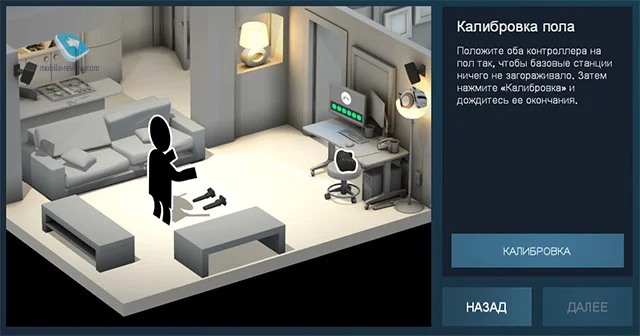
Fix #1: Use SteamVR’s Built-in Room Calibration
-
Open SteamVR
-
Click Menu > Run Room Setup
-
Choose Standing Only or Room-Scale
-
Remove controllers from the ground
-
Place one controller flat on the floor
-
Press Calibrate Floor
SteamVR uses the controller’s height to measure the correct floor level.
Fix #2: Recalibrate Using SteamVR Developer Settings
SteamVR has a hidden option:
-
Open SteamVR
-
Go to Settings
-
Enable Developer Settings
-
Select Quick Calibrate
This forces SteamVR to resync all positional anchors.
Fix #3: Reset “Chaperone” or Boundary Data
Sometimes the chaperone files are the problem.
Navigate to:
Delete the file.
SteamVR will generate a fresh calibration next launch.
Fix #4: Re-level the Floor Using OpenVR Advanced Settings
If you use mods like OpenVR Advanced Settings, you can manually lower the floor:
-
Open OpenVR Advanced Settings inside VR
-
Go to Space Fix
-
Select Floor Fix
-
Move the slider downward until the floor aligns properly
This allows millimeter-accurate adjustments.
Fix #5: Check Base Station Alignment
For Valve Index and HTC Vive users:
-
Make sure the base stations face downward at a 30–45° angle
-
Confirm none of them have vibrated, moved, or changed angle
-
Ensure the floor itself is visible (no rugs stacked, no objects blocking the view)
Even tiny shifts cause big calibration errors.
Device-Specific Fixes for the SteamVR Floor Height Bug
Different headsets have different causes for the “SteamVR Floor Too Hjigh” issue. Here’s how to fix it for each device category.
Valve Index & HTC Vive (Lighthouse Tracking)
These rely heavily on:
-
Base station placement
-
Lighthouse sync timing
-
Headset IMU data
If the floor appears too high:
-
Restart Lighthouses
-
Remove and restart the Index HMD
-
Ensure base stations are correctly angled
-
Re-run Room Setup
Meta/Oculus Quest (Using SteamVR via Link or AirLink)
The Oculus Guardian can override SteamVR height.
Fix steps:
-
Reset Guardian Boundary in Oculus app
-
Re-scan your room
-
Launch Link
-
THEN launch SteamVR Room Setup
Do not skip the Oculus stage—SteamVR relies on it.
Windows Mixed Reality (WMR)
WMR uses camera-based floor detection.
Fix steps:
-
Open Mixed Reality Portal
-
Run Set Floor
-
Place your controller on the ground
-
Confirm calibration
-
Restart SteamVR
WMR users face height issues more often due to reflective floors.
How to Prevent the SteamVR Floor Height Bug in the Future
To avoid the “SteamVR Floor Too Hjigh” problem returning, follow these recommendations:
1. Keep Sensor Positions Consistent
Do not move:
-
Base stations
-
Headset cameras
-
Your play area furniture
2. Avoid Reflective Surfaces
Mirrors, shiny floors, and glass confuse inside-out tracking.
3. Keep Software Updated but Controlled
Auto-updating VR software can create calibration inconsistencies.
4. Run Full Room Setup After Major Changes
If you:
-
Rearrange your room
-
Update firmware
-
Move your PC
-
Change lighting
always redo your calibration.
5. Use Controller-Based Calibration Regularly
Placing a controller on the floor ensures accurate baselines.
Conclusion
The “SteamVR Floor Too Hjigh” issue is one of the most common calibration problems across all VR systems. Fortunately, it is easy to fix by recalibrating your room, adjusting floor level settings, checking sensors, and resetting boundary data. Whether you’re using Index, Vive, Quest, or WMR, nearly all height-related problems come down to tracking data mismatches—and every mismatch can be corrected using the steps above.