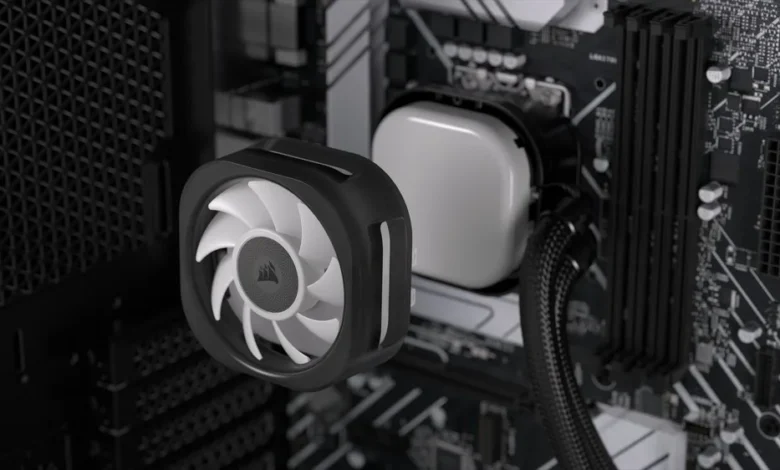
iCUE Not Seeing Cooler: When Corsair iCUE fails to detect a Corsair AIO cooler, it can cause fan issues, missing RGB controls, temperature monitoring failures, and overall performance problems. Whether you’re using an H100i, H150i, Elite Capellix, Link, or RGB Pro XT model, the “iCUE not seeing cooler” issue is one of the most common frustrations for PC builders. This guide explains the main causes, full diagnostic steps, and guaranteed fixes.
1. Why iCUE Doesn’t Detect the Cooler – The Most Common Causes
When iCUE does not see your cooler, it usually comes down to one of several hardware or software issues. The most frequent causes include:
-
USB header connection problems
-
Faulty or loose Commander Core / Commander Pro connections
-
Outdated iCUE software
-
Missing or corrupted Corsair drivers
-
Windows blocking the USB device
-
Incorrect SATA or power cable connection
-
Firmware mismatch after updates
In many cases, the cooler itself works (fans spin, RGB runs), but iCUE cannot detect the internal USB controller, which prevents monitoring.
2. Hardware Fixes – How to Make iCUE Detect Your Corsair Cooler
Before troubleshooting software, check the physical connections, which cause about 70% of detection failures.
✔ Check the Internal USB 2.0 Connection
Your cooler must be connected to:
-
motherboard USB 2.0 header, OR
-
a USB hub, if onboard headers are full
Make sure:
-
the plug is seated fully
-
the header is the correct orientation
-
you test a different USB header if available
✔ Reset or Re-seat the Commander Core
If your cooler uses a Commander Core, ensure:
-
all fan plugs are inserted properly
-
the USB cable is firmly attached
-
the SATA power cable is connected
A loose SATA cable means no detection.
✔ Try a USB-A to micro-USB cable externally
A powerful test:
-
Remove the cooler USB cable from the motherboard
-
Connect cooler → USB port on the back of your PC
If iCUE now detects the cooler, the issue is your internal USB header or motherboard hub.
3. Software Fixes – iCUE Not Detecting Cooler After Update or Fresh Install
Many users report issues after an iCUE update. Try the following:
✔ Update iCUE
Old versions may not detect new cooler firmware.
✔ Reinstall iCUE With Driver Cleaning
-
Uninstall iCUE
-
Delete:
-
Corsairfolders in Program Files -
AppData\Roaming\Corsair
-
-
Restart PC
-
Install the latest version
This fixes corrupted SDK and USB drivers.
✔ Check Windows Device Manager
Look under:
-
Universal Serial Bus devices
-
Human Interface Devices (HID)
If you see:
-
“Unknown USB Device”
-
“Device Descriptor Failed”
→ the cooler’s USB controller is not being recognized.
Right-click → Uninstall Device → restart.
✔ Disable USB Selective Suspend
Windows power saving often disconnects AIO USB devices.
Control Panel → Power Options → USB settings → Disable.
4. Firmware Problems – Cooler Not Showing After Firmware Update
Sometimes the cooler becomes undetectable due to firmware conflicts.
Signs of firmware issues:
-
RGB stuck at one color
-
iCUE sees the Commander Core but not the cooler
-
fans spin but no sensor readings appear
Fixes
-
Roll back to older firmware (if available)
-
Re-flash firmware via iCUE Device Settings
-
Contact Corsair Support for manual firmware files
Firmware failures are rare, but they can “brick” detection temporarily.
5. Special Cases – Which Coolers Have Known Detection Issues?
Some Corsair coolers are known for intermittent iCUE detection problems:
✔ H100i/H150i RGB Pro XT
Most common issue: loose micro-USB connection.
✔ Elite Capellix + Commander Core
Most common issue: SATA power not delivering enough wattage (especially when daisy-chained).
✔ Newer iCUE Link Models
Most common issue: Link Hub connection conflicts.
✔ Older AIO Models (pre-2018)
Most common issue: no longer fully supported by newer iCUE versions.
Knowing your cooler model helps diagnose faster.
6. When iCUE Still Won’t See the Cooler – Final Solutions
If the cooler still does not appear in iCUE, try these final fixes:
✔ Use a Powered USB Hub (Internal or External)
This resolves motherboard compatibility issues.
✔ Try a Different SATA Power Cable
Corsair Commanders are power-sensitive, and weak power = no detection.
✔ Update Your Motherboard BIOS
USB controller bugs often affect cooler detection.
✔ Full CMOS Reset
Resets all USB and firmware communication.
✔ Contact Corsair Support
If the internal USB chip is dead, Corsair may replace the cooler.
Many users report hardware replacement as the final, successful solution.