Fix EAANTICHEATSERVICE Failed Retrieving Service Path Error on Windows (Complete Guide)

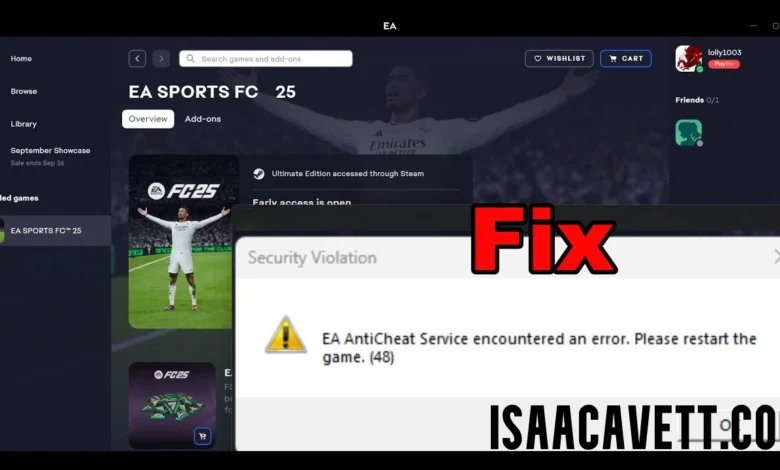
Encounter the eaanticheatservice failed retrieving service path error and stop your EA game from launching correctly. Address this issue immediately to restore proper game functionality and prevent repeated crashes. Follow this step-by-step guide to understand the problem, fix it permanently, and prevent it from returning.
Understand What “EAANTICHEATSERVICE Failed Retrieving Service Path” Means
Recognize that the eaanticheatservice failed retrieving service path error occurs when EA Anti-Cheat (EAC) fails to locate its registered Windows service path. Understand that EA Anti-Cheat relies on a correctly registered system service to start, validate game files, and allow protected games to run.
Acknowledge that when this service path is missing, corrupted, or blocked, Windows cannot start the service. As a result, the game crashes, refuses to launch, or logs an error in Event Viewer.
Accept that this issue is not caused by cheating behavior. Identify it as a system-level configuration or permission failure that must be corrected manually.
Identify the Main Causes of the Error
Determine the root cause of the eaanticheatservice failed retrieving service path issue before applying fixes. Focus on the most common triggers listed below.
Corrupted EA Anti-Cheat Installation
Identify damaged or incomplete EAC files caused by interrupted installations, forced shutdowns, or disk errors. Understand that missing files break the service registration.
Incorrect Windows Permissions
Notice that insufficient permissions prevent Windows from reading or starting the EA Anti-Cheat service. Recognize this issue when games are installed without administrator privileges.
Antivirus or Security Software Interference
Detect aggressive antivirus tools that block EA Anti-Cheat executables or registry entries. Understand that false positives often remove or quarantine essential files.
Non-Standard Installation Locations
Observe issues when games are installed on external drives, secondary disks, or custom folders. Accept that EA Anti-Cheat works best with default Windows paths.
Repair or Reinstall EA Anti-Cheat Correctly
Start by fixing the EA Anti-Cheat installation. Use this method as the primary solution for the eaanticheatservice failed retrieving service path error.
-
Navigate to the game’s installation folder.
-
Open the EAAntiCheat directory.
-
Locate EAAntiCheat.Installer.exe.
-
Right-click the file and choose Run as administrator.
-
Select Uninstall to remove the service.
-
Restart your computer.
-
Run the installer again and select Install or Repair.
Force the installer to recreate the Windows service registry entries. Confirm that the service path is restored automatically.
Run EA App and Game Executables as Administrator
Grant full permissions to EA software to prevent service access failures.
-
Right-click the EA App shortcut.
-
Select Run as administrator.
-
Navigate to the game’s main executable file.
-
Right-click and select Run as administrator.
-
Open Properties → Compatibility.
-
Enable Run this program as an administrator permanently.
Ensure that Windows allows EA Anti-Cheat to interact with protected system areas without restrictions.
Verify and Repair Game Files
Repair damaged or missing files that may prevent EA Anti-Cheat from locating its service path.
On EA App
-
Open the EA App.
-
Go to Library.
-
Click the three dots on the game.
-
Select Repair.
On Steam
-
Open Steam.
-
Right-click the game.
-
Select Properties → Installed Files.
-
Click Verify integrity of game files.
Allow the launcher to replace corrupted files automatically and restore correct configurations.
Check and Restart the EA Anti-Cheat Service
Manually confirm that the EA Anti-Cheat service exists and runs correctly.
-
Press Windows + R.
-
Type services.msc and press Enter.
-
Locate EA Anti-Cheat Service.
-
Right-click the service.
-
Select Restart.
-
Open Properties.
-
Set Startup type to Automatic.
Ensure the service starts without errors. If the service is missing, reinstall EA Anti-Cheat immediately.
Disable Antivirus Temporarily and Add Exclusions
Prevent security software from blocking EA Anti-Cheat.
-
Open your antivirus or Windows Security.
-
Temporarily disable real-time protection.
-
Add the following folders to the exclusion list:
-
EA App installation folder
-
Game installation folder
-
EAAntiCheat folder
-
Re-enable antivirus protection after testing. Confirm that the eaanticheatservice failed retrieving service path error no longer appears.
Move the Game to the Default Windows Drive
Eliminate path recognition issues caused by external or secondary drives.
-
Uninstall the affected EA game.
-
Reinstall the game on the C:\ drive.
-
Allow EA App to install EA Anti-Cheat automatically.
-
Restart the system.
Use default directories to ensure Windows registers the service path correctly.
Apply Advanced Fixes if the Error Persists
Use advanced steps only if standard solutions fail.
Recreate the Service Using Command Prompt
-
Open Command Prompt as administrator.
-
Navigate to the EAAntiCheat directory.
-
Run the installer with repair parameters.
Force Windows to rebuild service entries and correct broken registry paths.
Update Windows Completely
Install all pending Windows updates. Ensure system services, drivers, and security components are fully compatible with EA Anti-Cheat.
Prevent the Error from Returning
Follow these preventive steps to avoid future issues with eaanticheatservice failed retrieving service path:
-
Always install EA games using official launchers.
-
Avoid force-closing the system during updates.
-
Keep antivirus exclusions active.
-
Run EA App as administrator.
-
Avoid installing games on removable drives.
-
Repair EA Anti-Cheat immediately after crashes.
Conclusion
Resolve the eaanticheatservice failed retrieving service path error by repairing EA Anti-Cheat, correcting permissions, verifying game files, and eliminating security conflicts. Apply each fix methodically and confirm system stability after every step. Maintain proper installation practices and system updates to ensure uninterrupted gameplay across all EA titles.