
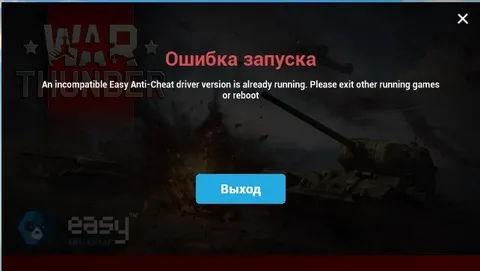
When you encounter the eaanticheatservice failed retrieving service path error, act immediately to restore game functionality. Use the steps and guidance below to eliminate the issue, strengthen system stability, and ensure smooth access to your EA games. Follow every instruction carefully and apply each solution in the order presented for best results.
1. Identify the Root Cause of the Error
First, determine why your system displays the eaanticheatservice failed retrieving service path message.
Do this before applying fixes to avoid wasting time:
- Inspect the Event Viewer for anti-cheat-related warnings.
- Check whether your game recently updated.
- Analyze recent changes in your system, such as Windows updates, driver changes, antivirus installations, or file deletions.
Recognize that this error appears when EA AntiCheat cannot access or locate its dedicated service path. Missing files, corrupted installations, registry conflicts, or restricted permissions cause this malfunction. Act quickly once you identify possible culprits.
2. Repair or Reinstall EA AntiCheat Service
Next, repair the anti-cheat service to rebuild the corrupted service path.
Follow these steps:
- Navigate to your game’s installation folder.
- Locate the folder named EasyAntiCheat or EA AntiCheat depending on the game.
- Right-click the installer file (usually
EAAntiCheat.Installer.exe). - Choose Run as Administrator.
- Select the Uninstall option first.
- After removal, click Install or Repair.
Force the system to refresh the anti-cheat configuration and recreate missing registry entries.
This single action often resolves the eaanticheatservice failed retrieving service path error completely.
3. Run the EA App and Games in Administrator Mode
Next, grant full privileges to the EA App and your game.
Windows sometimes blocks the anti-cheat service from accessing protected directories. To fix this:
- Right-click the EA App.
- Select Run as Administrator.
- Launch the game only after the EA App loads with elevated rights.
If the error persists, also run the game’s .exe file as Administrator.
Granting higher privileges forces Windows to allow anti-cheat components to run freely, helping eliminate the eaanticheatservice failed retrieving service path issue caused by permission restrictions.
4. Verify and Repair Game Files
Now verify your game files to ensure none of the critical anti-cheat dependencies are missing.
Depending on your launcher, do the following:
For Steam Users
- Go to your Library.
- Right-click the game experiencing the issue.
- Select Properties → Local Files → Verify Integrity of Game Files.
For EA App Users
- Open your Library.
- Click the three dots (menu) next to your game.
- Select Repair.
Allow the launcher to locate and replace corrupted files.
Incomplete or damaged game files contribute directly to the eaanticheatservice failed retrieving service path error, so repair them before continuing.
5. Recreate the EA AntiCheat Service Manually
If automatic repair fails, manually register the anti-cheat service.
Use Command Prompt:
-
Open Command Prompt as Administrator.
-
Enter the following command (adjust the path if different):
-
Press Enter.
-
Restart your PC.
Use this approach when Windows completely fails to maintain a valid service entry.
Manual registration forces the OS to recognize the anti-cheat service again, removing the eaanticheatservice failed retrieving service path error directly at its source.
6. Disable Conflicting Antivirus or Security Programs
Next, eliminate external interference.
Some antivirus programs block the anti-cheat controller from reading the service path. Follow these steps:
- Open your antivirus dashboard.
- Temporarily disable real-time protection.
- Add the EA game folder and anti-cheat folder to the exclusion list.
- Re-enable protection after testing.
If the error disappears, keep these exclusions permanently.
Security tools often misidentify anti-cheat programs as suspicious, so prevent them from obstructing your gameplay.
7. Ensure Your System Uses Default File Locations
Make sure you install games and launchers in standard Windows directories.
If you installed your game on an external drive, unusual partition, or network location, relocate it.
Do this to avoid path-resolution issues.
Anti-cheat systems depend on stable directory structures, and unusual paths often cause the eaanticheatservice failed retrieving service path message to appear.
8. Clear Cache and Temporary EA Files
Ensure the EA App runs with fresh data.
To clear your cache:
- Press Windows Key + R.
- Type
%ProgramData%/EA Desktop. - Delete all files inside, except the Logs folder.
- Restart the EA App.
Clear corrupted cache data that may interfere with anti-cheat file detection.
9. Update Windows, GPU Drivers, and EA Launcher
Now update all system components.
Outdated software frequently causes service path conflicts. Complete the following:
- Update Windows.
- Install the latest NVIDIA or AMD GPU drivers.
- Update the EA App to the newest version.
- Restart your PC.
These updates help prevent compatibility issues that bring up the eaanticheatservice failed retrieving service path message.
10. Contact EA Support as Final Option
If none of the actions above resolve the issue, contact EA Help.
Provide:
- System logs
- Event Viewer screenshots
- Steps you already tried
Support agents can review your logs and provide advanced system-specific fixes.
Final Thoughts
Use the steps above to quickly fix the eaanticheatservice failed retrieving service path error and restore smooth gameplay.
Act systematically: diagnose, repair anti-cheat, verify files, update software, and eliminate external conflicts. Implement each method carefully and maintain proper system hygiene to prevent future issues.
