Wuthering Waves DXGI Error Device Hung: Causes, Fixes, and Complete Troubleshooting Guide

Understanding the “DXGI Error Device Hung” in Wuthering Waves
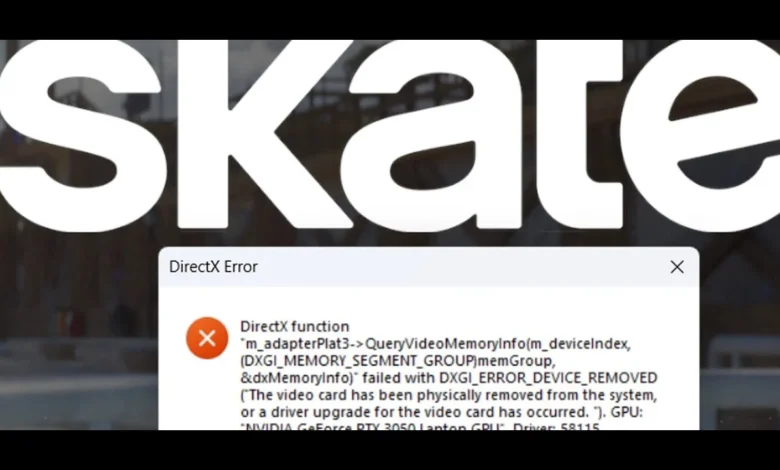
Wuthering Waves DXGI Error Device Hung: The DXGI Error Device Hung is one of the most common PC errors reported by players of Wuthering Waves, especially on systems experiencing graphics instability. This error originates from the DirectX Graphics Infrastructure (DXGI) and typically occurs when the GPU stops responding or fails to execute commands sent by the game engine.
In Wuthering Waves, players often encounter this issue during:
-
High-intensity combat
-
Loading new map zones
-
Cutscenes
-
Alt-tabbing in and out of fullscreen mode
-
Extended gameplay sessions
The message usually appears as:
“DXGI_ERROR_DEVICE_HUNG: The GPU will not respond to more commands.”
This error is not exclusive to Wuthering Waves—it also appears in games like Warzone, Apex Legends, Genshin Impact, and Fortnite, indicating it’s often tied to driver issues, unstable GPU settings, or hardware limitations.
What Causes DXGI Error Device Hung in Wuthering Waves?
The DXGI error results from a communication failure between the game and your GPU. While the root causes vary, Wuthering Waves’ demanding graphics engine and large open world environments make certain systems more vulnerable.
Common Causes Include:
1. Outdated or Corrupted GPU Drivers
The most frequent cause is old NVIDIA/AMD drivers or drivers damaged by incomplete installations.
2. GPU Overclocking
Factory-overclocked GPUs or custom overclocks can push the card beyond stable limits, causing crashes.
3. Graphics Card Overheating
When GPU temps exceed safe limits (85°C+), the card may deactivate tasks to prevent damage.
4. Incompatible DirectX or Shader Settings
Wuthering Waves uses modern DirectX features; incorrect graphics settings may trigger instability.
5. Insufficient Power or Voltage Issues
Some mid-range GPUs crash under high load if:
-
Power supply is weak
-
Voltage behavior fluctuates
-
PCIe power cables are loose
6. Damaged or Missing Game Files
Unverified or corrupted assets cause the GPU to fail interpreting graphical data.
7. Windows Timeout Detection and Recovery (TDR) Triggers
If Windows thinks your GPU is “taking too long,” it forcibly resets it—triggering DXGI errors.
Knowing the root cause helps you apply the right fixes.
Fixing DXGI Error Device Hung in Wuthering Waves (Step-by-Step Solutions)
Below are confirmed fix methods players use for Wuthering Waves and other DXGI-affected games.
Update or Reinstall Your GPU Drivers
Updating drivers resolves over 70% of DXGI issues.
For NVIDIA Users
Use NVIDIA GeForce Experience or download drivers manually from NVIDIA’s website.
Recommended steps:
-
Uninstall current driver using DDU (Display Driver Uninstaller) for a clean reset.
-
Install latest Game Ready Driver.
-
Restart PC.
For AMD Users
-
Use AMD Cleanup Utility or DDU to remove old drivers.
-
Install the newest Adrenalin Edition driver.
-
Restart PC.
Why It Works
Wuthering Waves updates frequently, and outdated drivers often become incompatible.
Lower In-Game Graphics Settings
In many cases, the game is simply pushing the GPU too hard.
Recommended settings changes:
-
Set Graphics Preset → Low or Medium
-
Turn Motion Blur → Off
-
Lower Shadows / Reflections
-
Change Anti-Aliasing → TAA Low or FXAA
-
Disable Depth of Field
-
Disable VSync
-
Set Render Resolution → 90–100%
Most Important Setting: Frame Rate Limit
Set FPS limit to:
-
60 FPS for mid-range GPUs (GTX 1060, RTX 2060, RX580)
-
75–90 FPS for newer cards
This reduces GPU spikes that often trigger the DXGI error.
Disable GPU Overclocking (Critical Fix)
Overclocked GPUs are a top cause of DXGI instability.
Even factory overclocks can crash Wuthering Waves.
Steps:
-
Open MSI Afterburner
-
Press Reset to return the card to stock settings
-
Restart PC
If your GPU was overvolted or overclocked, Wuthering Waves may fail to compile shaders—causing the error.
Increase Windows TDR Timeout Value (Advanced Fix)
DXGI errors often stem from Windows prematurely resetting the GPU.
You can increase the GPU timeout detection limit.
Steps:
-
Press Win + R, type regedit
-
Navigate to:
HKEY_LOCAL_MACHINE\SYSTEM\CurrentControlSet\Control\GraphicsDrivers -
Create a new DWORD (32-bit) named:
TdrDelay -
Set value to: 10
-
Restart PC
This allows the GPU more time before Windows resets it.
Repair Wuthering Waves Game Files
Corrupted game assets are known to trigger the DXGI error.
Launcher Method
-
Open Wuthering Waves Launcher
-
Click Settings → Verify Files
-
Wait for integrity check to complete
Epic Games / Steam (if applicable)
-
Right-click the game → Properties → Verify Integrity
If shaders, textures, or cutscene files were damaged, this will fix them.
When to Consider Hardware Issues
If you still get DXGI Error Device Hung after all software fixes, your hardware may be the cause.
Check for:
-
PSU too weak (below 450W for mid-range GPUs)
-
Thermal throttling
-
Faulty VRAM (artifacting + DXGI errors)
-
GPU driver crashes in multiple games
If multiple games show the same error, it’s likely a hardware instability, not a Wuthering Waves issue.
Final Tips to Prevent DXGI Errors in Wuthering Waves
-
Keep GPU drivers updated
-
Avoid overclocking (CPU & GPU)
-
Clean dust from GPU fans
-
Use a stable power supply
-
Close background apps before launching the game
-
Use Fullscreen, not Borderless (reduces GPU spikes)
These precautions significantly reduce the chance of graphics-related crashes.